How Ohai Reminders and To-Dos Now Work Together
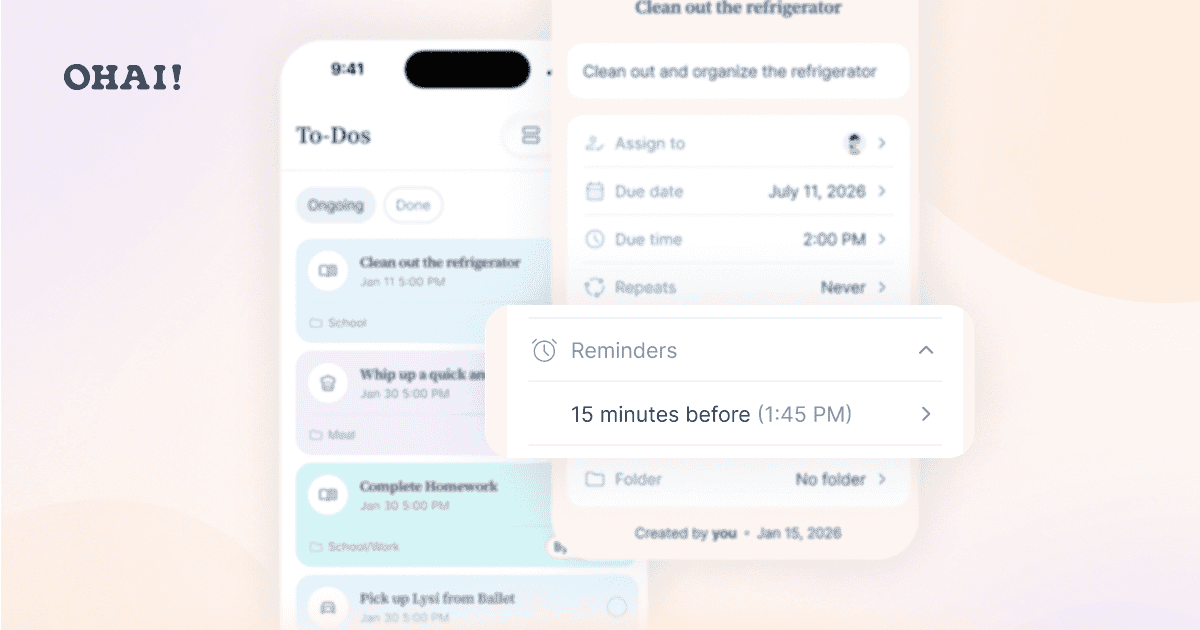
Table of Contents
- What actually changed
- Just tell O what you need to do
- How O times your reminder
- Recurring nudges for the things that repeat
- One reminder, the whole household
- Manage it all without opening a chat
- Delete, complete, reopen: what happens to the nudge
- Where everything shows up, and what happened to your old reminders
- To-Dos and Lists are not the same thing
- A week in the merged system
- What families say about staying on top of it all
- Try it in your next quiet minute
- Frequently Asked Questions About Ohai Reminders and To-Dos
One connected system, so every task comes with a nudge, and every nudge lands on a task you can assign, see, and check off.
In short: In Ohai, a to-do is the task your household needs to get done, and a reminder is the nudge that makes sure it happens on time. In the latest release, the two are now one connected feature. Tell O what you need to get done, by voice dump, text, or in conversation, and O creates the to-do with a reminder already attached.
Most families do not run on a single list. The pediatrician follow-up is a text you send yourself. The field-trip form is a sticky note. The defrost the chicken thought is floating somewhere in your head at 4 p.m. That scattering is the mental load, and it wears you down because the same responsibility ends up in three places that do not talk to each other.
Ohai just closed that gap. Reminders and To-Dos, which used to be separate, now work as one. This guide covers what changed, how the new defaults behave, and what it means for the way your household keeps sight of everything that needs doing.
What actually changed
For a long time, a reminder and a to-do were two different things. You could be reminded about something that was not on any list, or you could list something with no nudge behind it. Useful in the moment, easy to lose over a week.
This change came straight from our members. A lot of you told us the old reminders did not go far enough: a ping might fire, but a ping is not proof the thing actually got done, especially when the person who needed to act was a partner or a kid rather than you. People asked for a sturdier reminder, one they could assign, see, and mark done. Linking reminders to to-dos is what makes that possible.
Now there is one simple rule: every reminder lives inside a to-do. A to-do is the thing that needs doing, something you can name, assign to a person, give a due date, and check off. A reminder is the alert that tells the right people at the right time. You cannot set a free-floating reminder anymore, because a nudge with nothing behind it is exactly the kind of thing that slips through the cracks.
Two roles, one system
The to-do — the task itself
- Has a title, an owner, and an optional due date
- You assign it, see it, and check it off
- Lives in your To-Dos tab, Daily Dump, and home screen
The reminder — the nudge about the task
- Fires at, or before, the due date and time
- Lets the assignees know it is time
- Arrives as an app notification or SMS
Just tell O what you need to do
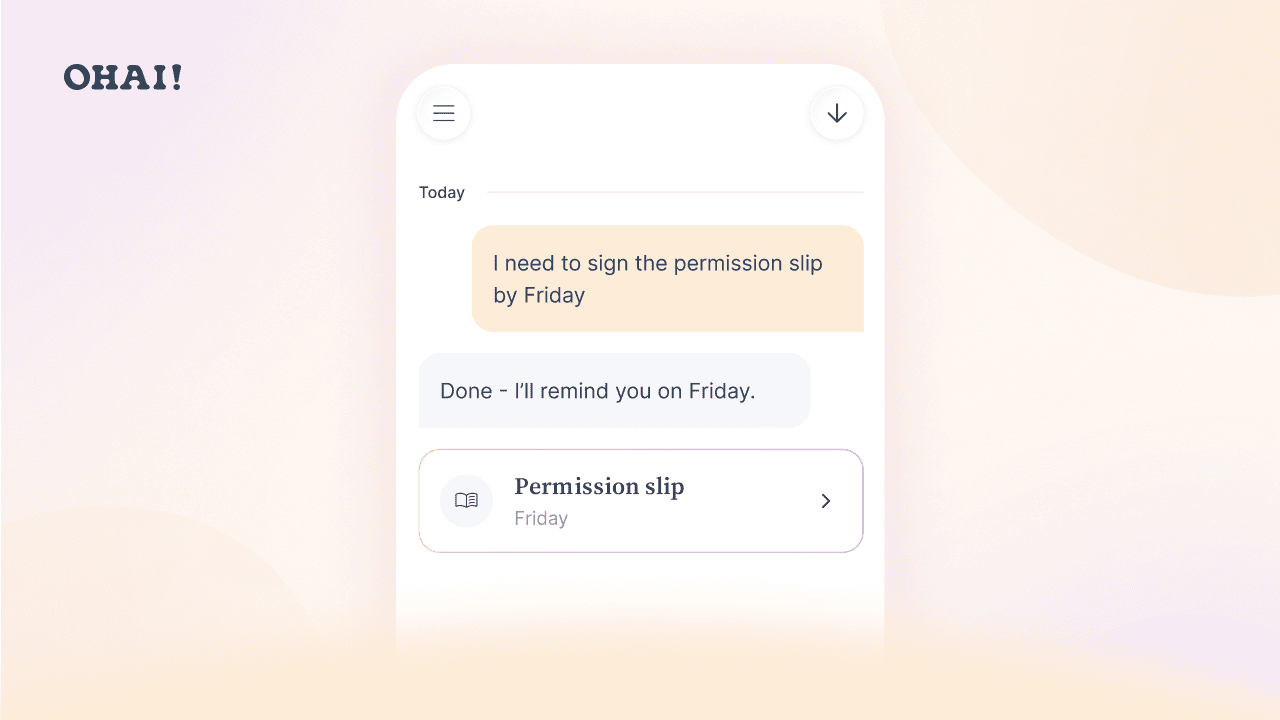
You do not need any special phrasing. Tell O what is on your plate, by voice dump, text, or in the middle of a conversation, and O turns it into a to-do with a reminder attached. “Remind me to pack the umbrella tomorrow at 8 a.m.” works, and so does a plain statement like “I need to sign the permission slip by Friday.” Either way, O creates the task, sets the nudge, and files it where the rest of your family's to-dos live. Nothing gets lost after it pings, because the reminder now has a home you can come back to.
How O times your reminder
When O creates a to-do from something you told it, it sets the reminder automatically, and the timing follows a predictable set of defaults.
- The to-do has a due date and a specific time — O reminds you at that time.
- The to-do has a due date but no specific time — O reminds you at 9:00 a.m. that day.
- You phrased it as a reminder, e.g. “remind me at 6 p.m.” — O reminds you at exactly the time you said.
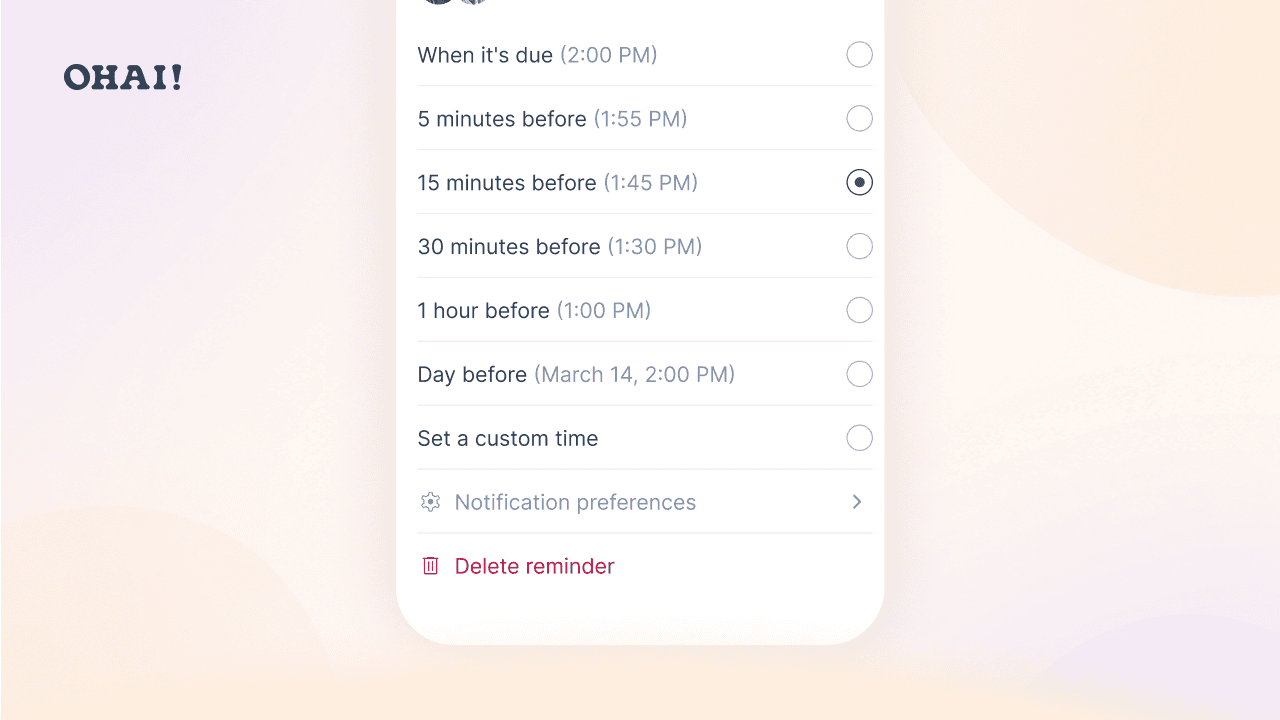
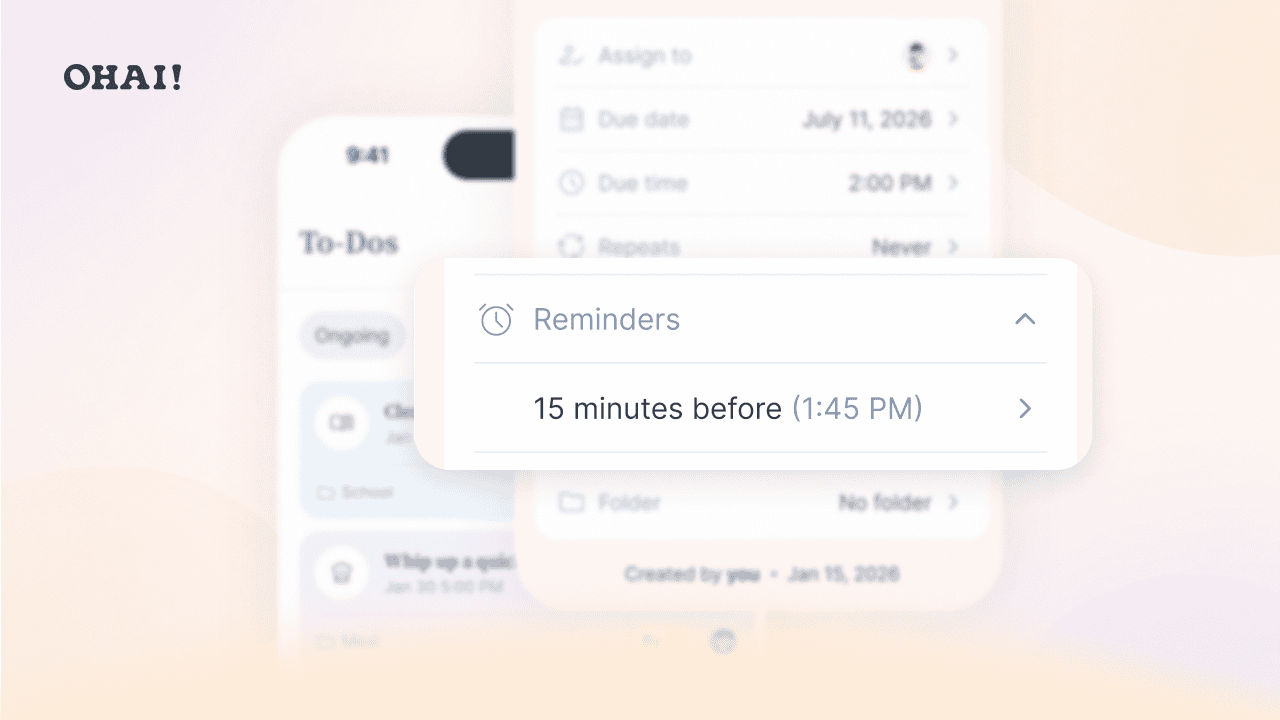
You are never locked into the default. Open any to-do and you can move the reminder to 5, 15, or 30 minutes before, an hour before, a day before, or a custom date and time you pick yourself. Want no nudge at all on a particular item? Remove just the reminder and leave the to-do in place.
One thing to know: the automatic reminder happens when you talk to O. If you build a to-do by hand in the app instead, O does not add a reminder for you. You can add one yourself in a couple of taps from the to-do’s reminder row, which we cover below.
Recurring nudges for the things that repeat
Some responsibilities never really end: the 8 a.m. medication, the Tuesday-night bins, the every-other-day plant watering. Ask O once, “remind me to take my allergy pill every morning at 8,” and O creates a recurring to-do with a reminder that repeats on the same cadence. Change how often the to-do repeats and the reminders adjust automatically. Because the reminder rides on a to-do you can assign, a recurring medication or chore reminder can belong to a specific person in your household instead of living only in your head.
Ohai can help your household remember routine medications, but it is not a medical device and is not a substitute for guidance from a licensed healthcare provider. Always follow the instructions on your prescription and talk to your doctor or pharmacist about dosing.
One reminder, the whole household
Because reminders ride on to-dos, they inherit who is responsible:
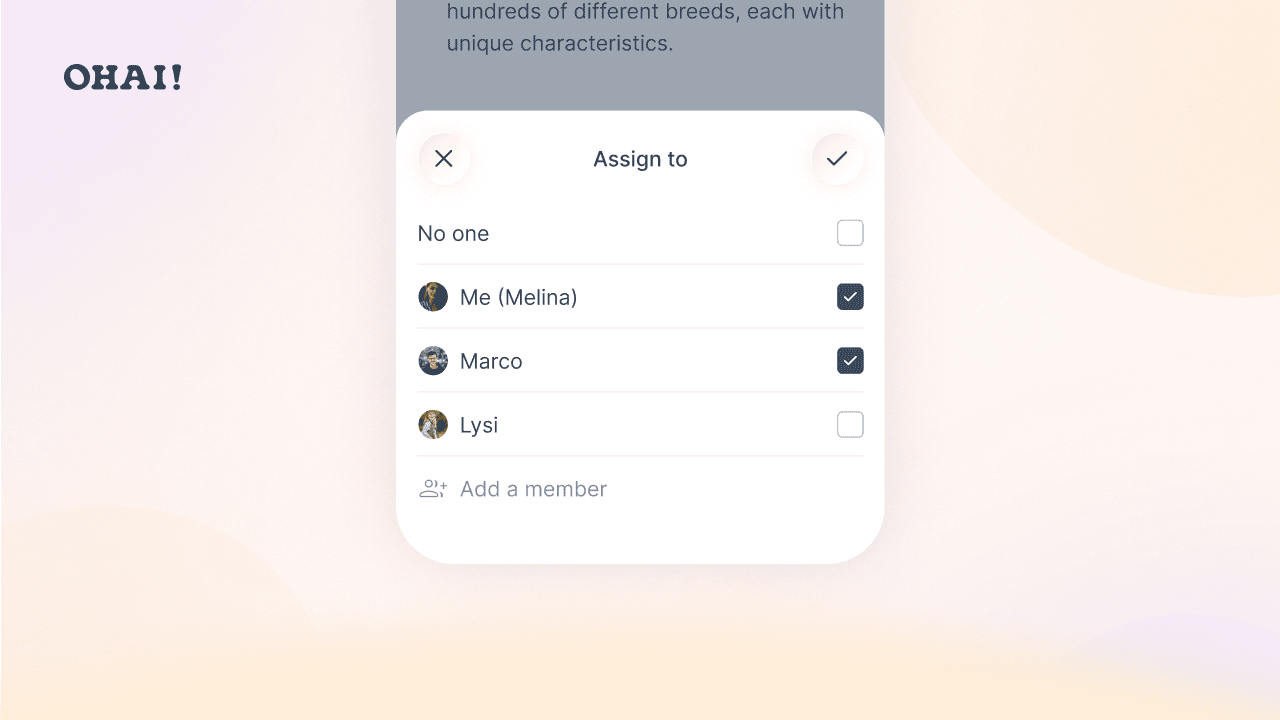
- Assign a to-do to more than one person, and every assignee gets the reminder.
- Assign a task to a child or dependent who does not have their own account, and the reminder goes to the Circle Lead, so someone is always covered.
- A to-do with no owner does not get a reminder, because there is no one for O to nudge. Add an owner later and the reminder appears.
- If a to-do is assigned to O, something O can take care of for you, no reminder is sent, since O is handling it.
This is what sharing the mental load looks like in practice: the nudge lands on the person who actually has to act, not only on the parent who assigned it.
Manage it all without opening a chat
You can do all of this by talking to O, but you no longer have to. This is also where you add a reminder to a to-do you built by hand. Open a to-do that has an owner and a due date, and you will see a reminder row. Tap it and a drawer opens where you can view any reminders already set, add one, change the timing, or delete it. It works the same way on the web and in the mobile app, so the family member who lives in chat and the one who prefers tapping through screens both get the full picture.
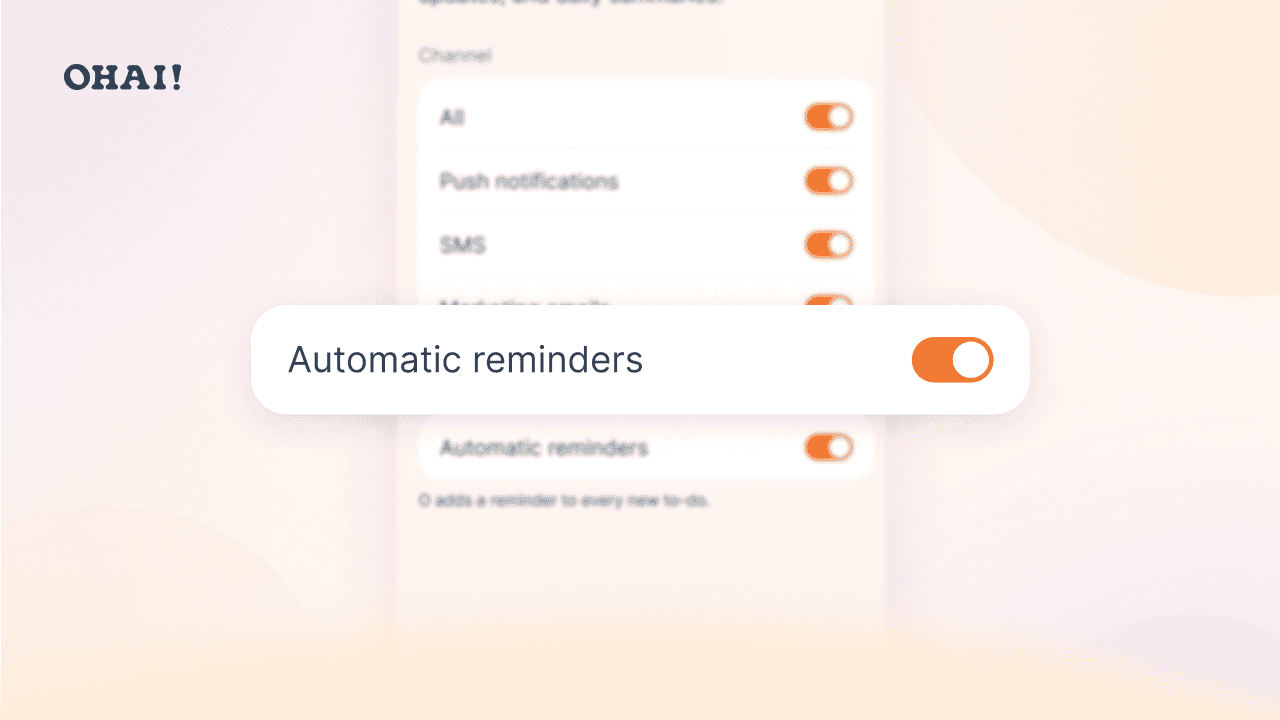
There is also a single switch for anyone who would rather opt out. In your notification settings, automatic reminders are on by default. Turning them off stops O from auto-attaching reminders to the new to-dos you create. The setting applies only to you, it does not stop you from adding a reminder by hand or asking O for one directly, and it never changes the reminders other people in your household receive.
Delete, complete, reopen: what happens to the nudge
Because a reminder exists to support a to-do, the two stay in sync:
- Delete a to-do, and its reminders go with it.
- Delete or switch off a reminder, and the to-do stays exactly where it is. The reminder was only the nudge.
- Check a to-do off, and O stops sending its reminders without erasing anything.
- Reopen a completed to-do, and its reminders start up again.
Where everything shows up, and what happened to your old reminders
Your reminders now appear wherever your to-dos do: the To-Dos tab (tap the checkmark icon at the bottom of your screen), your Daily Dump, and your home screen. Ask “show my reminders for today,” and O will pull up the to-dos due today, so the word you reach for does not matter.
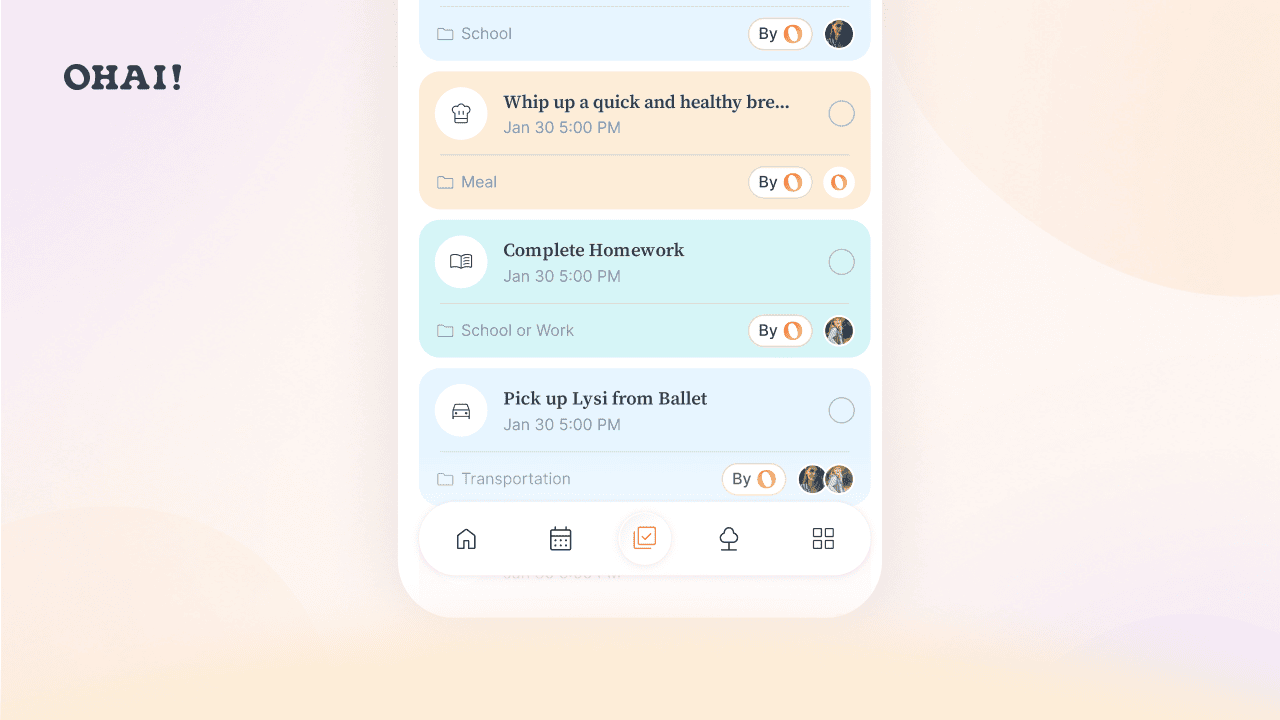
If you were already an Ohai member, nothing was lost in the change. Every existing reminder, including recurring ones and reminders set for a future date, moved to a to-do with the reminder attached. Your reminder's title became the to-do title, its date became the due date, its recurrence became the repeat rule, and its owner carried across. You will simply find it all in your To-Dos now.
To-Dos and Lists are not the same thing
This one is worth a quick note, because it is an easy mix-up. Task items now live in the To-Dos feature, where you can assign them, give them due dates, and get that built-in reminder. Lists is a separate feature for grouping items together, and it is still the right home for a shopping list or a grocery run you plan to send to Instacart. If you want something you can assign and be reminded about, make it a to-do. If you want a simple set of items to gather, make a list.
A week in the merged system
Here is how it plays out across an ordinary week. On Monday you text O, “I need to sign the field-trip form by Thursday,” and a to-do appears with a Thursday due date and a 9:00 a.m. nudge that morning. Tuesday, you add a recurring to-do for the recycling and assign it to your partner, who now gets their own reminder every Tuesday night. Wednesday, you ask O to research things to do with the kids this weekend in your area, and because that to-do is assigned to O, it carries no reminder, since O is doing the legwork. Thursday morning you get the field-trip nudge, sign the form, and check it off, and the reminder quietly stops. Nothing lived on a sticky note, nothing pinged into the void, and no single person had to hold the whole week in their head.
That is the practical payoff of linking reminders and to-dos: the family stays coordinated on who is doing what, chores and schedules and one-off tasks all sit in the same place, and the nudge always points back to something real you can act on.
What families say about staying on top of it all
The app’s text reminders are a lifesaver, they keep us on track for everything from school pickups to swim lessons and speech therapy, so nothing slips through the cracks. We especially appreciate how easy it is to assign tasks, like asking each other to grab groceries or handle drop-offs, right through the app.
— Warvill
As an ADHD mom of three, using Ohai for the last year has allowed my brain to breathe. I can set all my reminders for myself and my family members.
— ruship11
With exams season starting, it’s so clutch having all my to-do’s, study schedule, and office hours in one app AND have Ohai remind me of all my tasks so I don’t procrastinate too much.
— cheetoless
Try it in your next quiet minute
Ask O to remind you about the very next thing on your mind, then open your To-Dos tab and watch it land there, ready to assign, reschedule, or check off. One connected place for the nudge and the task behind it.
Frequently Asked Questions About Ohai Reminders and To-Dos
What is the difference between a to-do and a reminder in Ohai?
A to-do is the task itself, something your household needs to get done that you can name, assign, give a due date, and check off. A reminder is the nudge that tells the right people about it at the right time. In Ohai, the two now work together: every reminder lives inside a to-do, so a nudge always has a real task behind it.
Why did Ohai combine reminders and to-dos?
We combined them after hearing from members who wanted a sturdier reminder. A ping on its own does not confirm anything actually happened, especially when the task belongs to a partner or a child rather than you. By attaching every reminder to a to-do, the nudge now points to a task you can assign, see, and mark done, so you know whether it got handled, not just that someone was reminded.
Can I still set a reminder without creating a to-do?
No. Reminders now always live inside a to-do. When you ask O to remind you about something, O creates a matching to-do automatically, so the thing you are being reminded about is also something you can see, assign, and check off.
Do I have to say “remind me” to create a to-do or reminder?
No. You can tell O what you need in plain language, by voice dump, text, or conversation, and it will create the to-do and attach a reminder. Saying “remind me to call the school at 2 p.m.” works, and so does “I need to call the school this afternoon.” O understands both and sets things up the same way.
When does Ohai remind me by default?
When O creates a to-do from something you told it, it sets a reminder automatically. If the to-do has a due date and a specific time, O reminds you at that time. If it has a due date but no time, O reminds you at 9:00 a.m. that day. If you name a specific reminder time, such as “remind me at 6 p.m.,” O uses exactly that. To-dos you create by hand in the app do not get an automatic reminder, but you can add one yourself in a couple of taps.
Can I change when I get reminded?
Yes. Open any to-do and adjust the reminder to 5, 15, or 30 minutes before, an hour before, a day before, or a custom date and time. You can also just tell O, for example “change the reminder to 20 minutes before instead,” and O will update it.
Can Ohai send recurring reminders, like for medication or chores?
Yes. Ask O once for a repeating reminder, such as “remind me to take my allergy pill every morning at 8,” and O creates a recurring to-do with a reminder that repeats on the same cadence. Because the reminder is attached to a to-do, you can assign it to a specific family member. Note that Ohai helps your household remember routine medications but is not a medical device or a substitute for advice from a licensed healthcare provider.
Can I set a reminder for another family member?
Yes. Assign the to-do to any member of your Circle and the reminder goes to them. Assign it to more than one person and every assignee is reminded. If you assign a task to a child or dependent who does not have their own account, the reminder goes to the Circle Lead so it is always covered.
Do I have to use the chat to manage reminders?
No. Open a to-do that has an owner and a due date, tap the reminder row, and a drawer opens where you can add, edit, or delete reminders. It works the same on the web and in the mobile app, so you can manage everything by tapping or by chatting with O, whichever you prefer.
Can I turn off automatic reminders?
Yes. In your notification settings, automatic reminders are on by default, and you can switch them off. When off, O stops auto-attaching reminders to the new to-dos you create, but you can still add a reminder by hand or ask O for one. The setting applies only to you and does not change reminders anyone else receives.
If I delete a to-do, does the reminder get deleted too?
Yes. A reminder exists to support its to-do, so deleting the to-do deletes its reminders. If you only delete or switch off the reminder, the to-do stays exactly where it is. Completing a to-do stops its reminders without erasing anything, and reopening it starts them again.
What happened to my existing reminders after the update?
Nothing was lost. Every existing reminder, including recurring ones and reminders set for a future date, moved over to a to-do with the reminder attached. You will now find and manage everything in your To-Dos tab, your Daily Dump, and your home screen.
Where can I see my reminders now?
Your reminders appear wherever your to-dos do: the To-Dos tab (tap the checkmark icon at the bottom of your screen), your Daily Dump, and your home screen. You can also ask O, “show my reminders for today,” and it will pull up the to-dos due today.
How does an AI home management app like Ohai reduce mental load for parents?
An AI household assistant like Ohai reduces mental load by turning scattered thoughts, texts, and sticky notes into one connected system. Every reminder becomes a to-do you can assign to the right person and check off, so no single parent has to hold the whole family's schedule in their head. The nudge lands on whoever has to act, which is what sharing the load actually looks like.