The Hidden Ohai Feature That Does Your To-Dos For You: A Power User's Guide to Assign to O
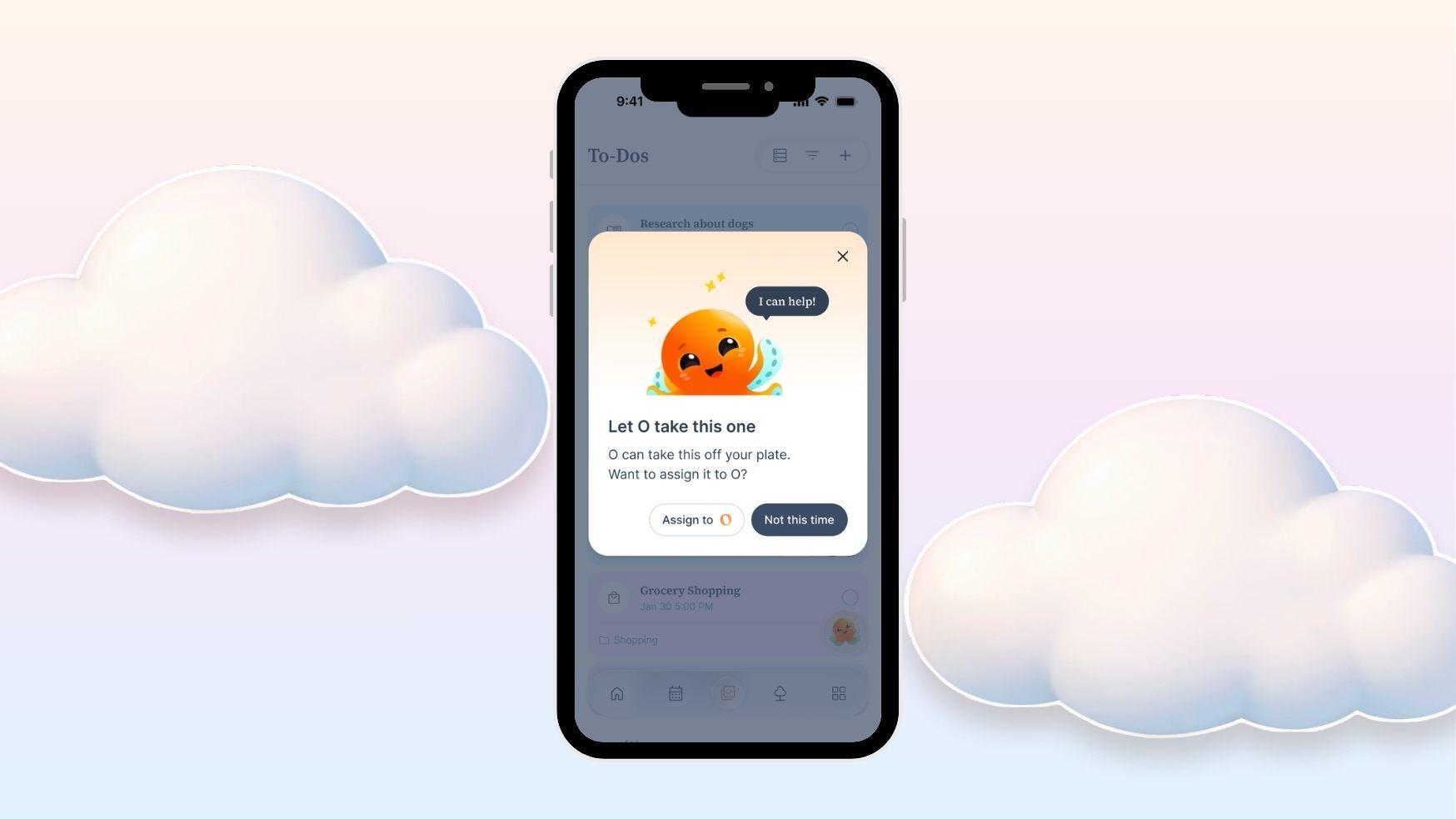
Table of Contents
- What is Assign to O?
- The simple rule of thumb: when can O take a to-do?
- What kinds of to-dos can you assign to O?
- See it in action
- The other side of this: recurring to-dos and recurring reminders
- Why this matters: less mental load, not just better organization
- Frequently asked questions
- Want to see more?
- Try it tonight
by the Ohai team
When we relaunched Ohai earlier this year, we shared a lot of what we'd been building: a new homepage, a shared family calendar, a redesigned to-dos system, voice mode, and the early shape of where O is going. The feedback since then has been enormous, and a lot of it has been the same thing: what else can O actually do?
This post is for the users asking that question. Because there's one feature inside the to-dos system that we honestly haven't loudly marketed yet, and the users who've found it are getting hours back every week.
It's called Assigned to O. Here's how it works, what to use it for, and why it's the closest we've come to actually offloading mental load instead of just organizing it.
What is Assign to O?
Assign to O is a feature inside Ohai's to-dos that lets your AI home assistant complete recurring tasks for you, automatically, on a schedule you set.
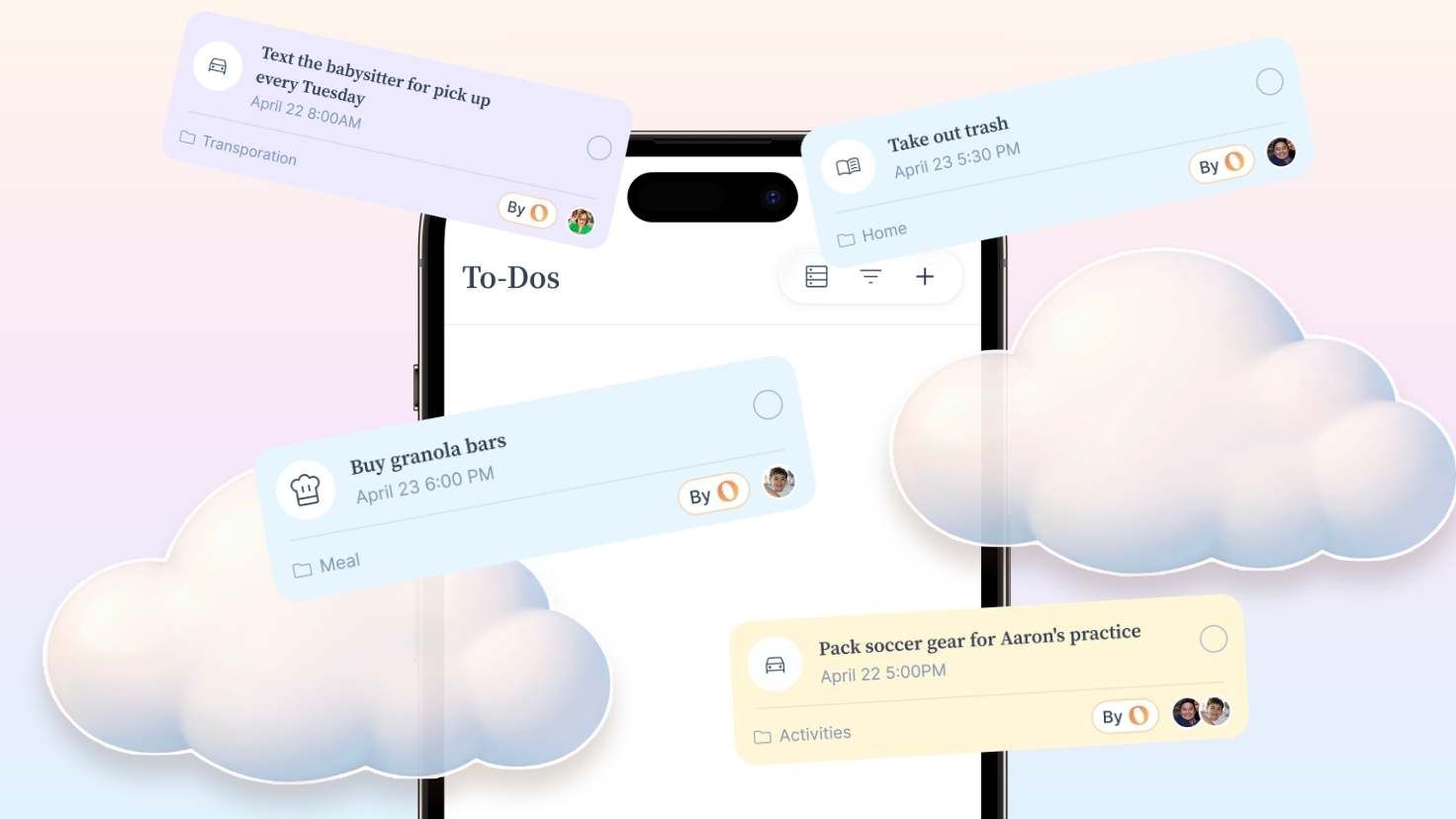
If you've used the basics of our redesigned to-dos feature, you already know how it works at the surface level. You write something down, assign it to someone in your household, set a due date, and check it off when it's done. That's the foundation, and it's already a meaningful upgrade from sticky notes and group texts.
But most to-do apps are built around the assumption that you are the one doing every task. You write it, you do it, you check it off. The mental load just shifts from your head to the list.
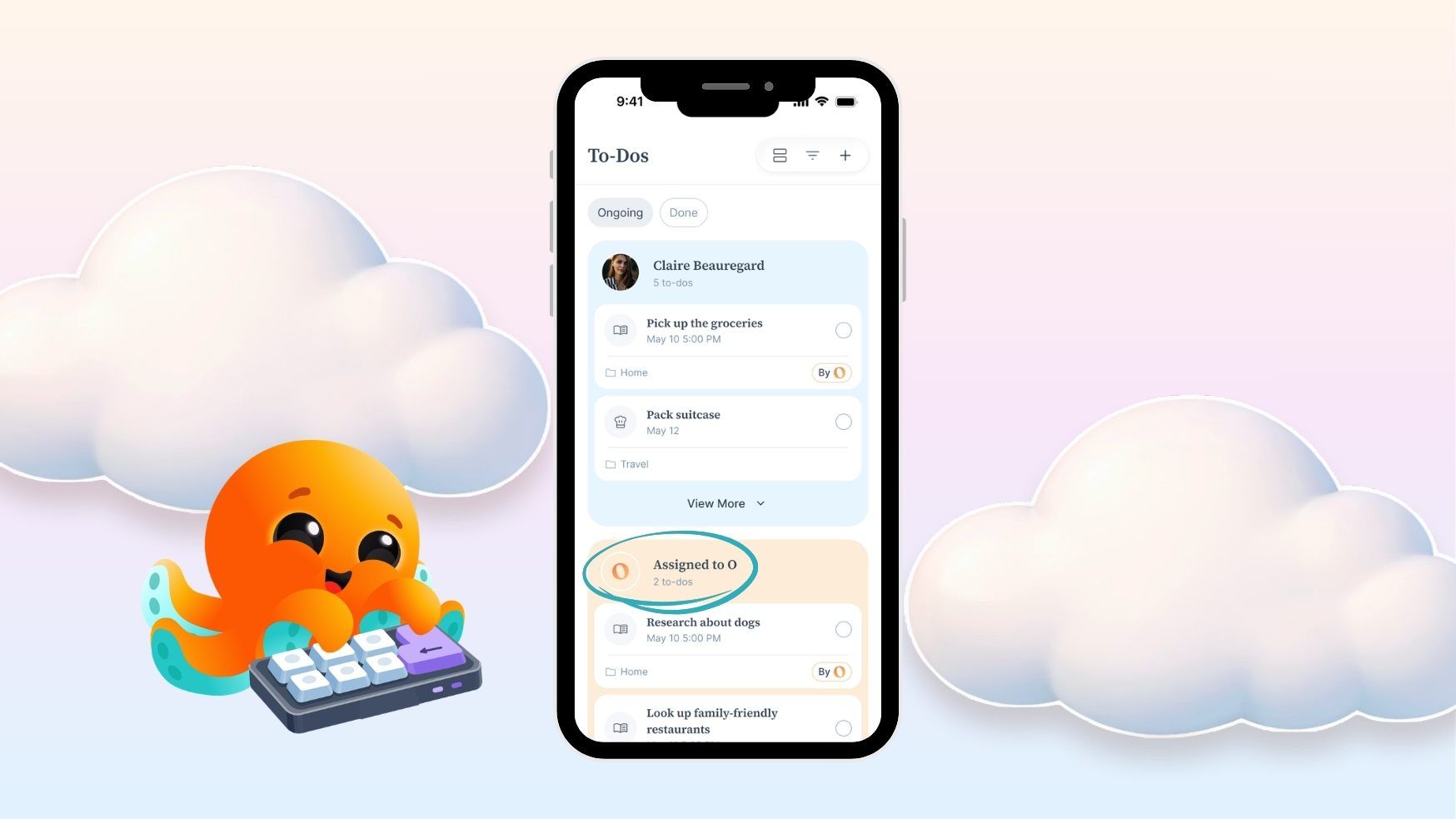
Assign to O flips that. Instead of you doing the task, O does it. You hand the task over once, and O runs it on whatever schedule you set, without you having to ask again.
The simple rule of thumb: when can O take a to-do?
If O can go look something up, check something, or plan something for you, then O can take that to-do. Make sure it has a due date and time. As you create the to-do, if O recognizes it's something it can handle, you'll see a prompt asking if O should take it over. Tap yes, and it's done. From that point on, the task runs itself.
If you're wondering whether your idea will work, the answer is usually: try it. If O can't do it, the pop up won't appear.
What kinds of to-dos can you assign to O?
Here are real examples we've tested or seen in the wild. Mix and match these to fit how your household runs.
Weekly planning that just shows up
"Look up things to do in my neighborhood that are kid-friendly and under twenty dollars" set to recur every Wednesday so your weekend plans are sitting there waiting by Thursday morning.
"Suggest healthy weeknight meals for 4, kid-friendly, no peanuts" set to recur every Sunday so you stop staring into the fridge at 5pm wondering what's for dinner.
"Suggest a back to school shopping list for grade school kids and always include a set of folders to organize papers" set to recur every August 1. Set it once and it just shows up year after year. You can even tell O exactly what you want on the list, brands, sizes, the things you always forget.
"Every Friday at 6pm pick a movie for our family to watch, and share Rotten Tomato ratings too. We like romcoms and action movies"
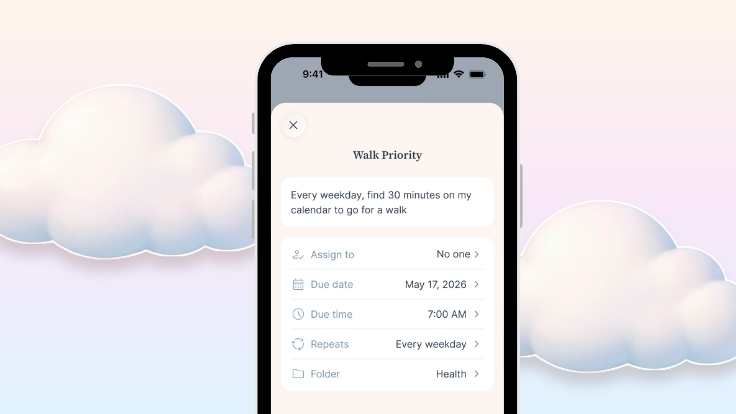
"Every weekday, find 30 minutes on my calendar to go for a walk" this protects your time without you having to do the protecting.
Conditional reminders that actually think
"Look up the weather and if it's raining, set a reminder to bring an umbrella" set this to run daily.
"Check today's calendar if there's a marketing meeting today, and if so, set a reminder 1 hour before to prep the data report" this turns your calendar into a smart trigger.
"Every weekday at 5pm, check my calendar and my husband's. Whoever has a free slot on their calendar, block off 45 minutes to cover bedtime." If you're new to the family calendar piece, here's a quick refresher on how Ohai pulls everyone's schedules into one shared view.
"Check the weather and if it's not raining, find 45 minutes on my calendar for a run today." Here O reads your calendar, checks the weather, and carves out the time.
Some of these calendar-aware to-dos require a connected calendar and a Premium plan. Nevertheless, they feel almost unfair once you set them up. O is taking multiple steps off your plate.
See it in action
We made a quick walkthrough video showing exactly how to set up your first Assign to O to-do, with real examples you can copy:
The other side of this: recurring to-dos and recurring reminders
People mix these up all the time, so it's worth being clear about the difference.
There are actually three different things you can set up that all sound similar:
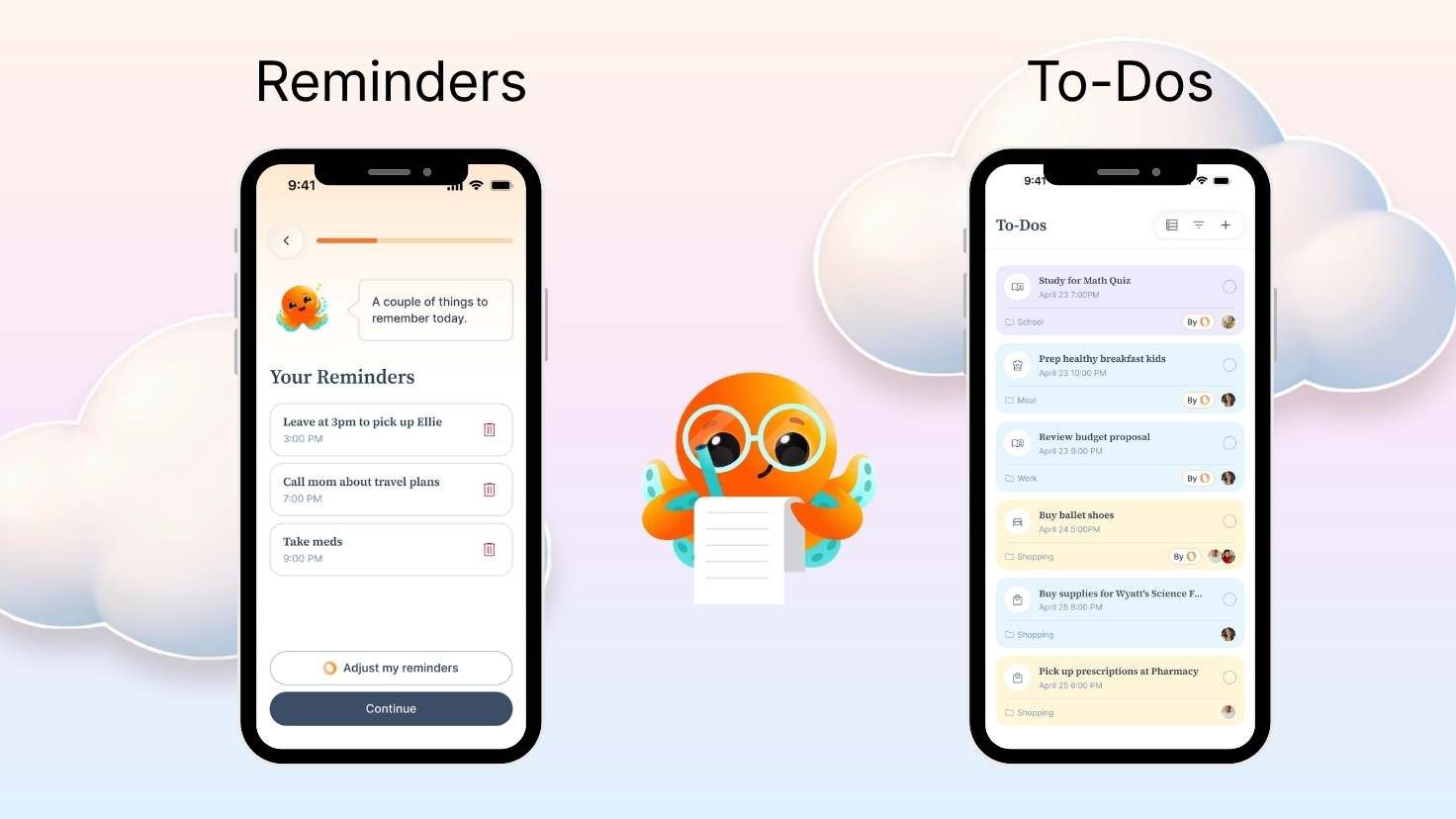
Recurring reminders are nudges in the moment. "Remind me to take meds at 9pm" or "remind me to stretch my legs every hour while I'm at work." You're not adding anything to a list, you just want a tap on the shoulder.
Recurring to-dos live on your list and repeat. "Change the HVAC filter, first of every month" or "book annual physicals every January." These are tasks you still do yourself, but you never have to remember them again. They just show up on your to-dos when you need to see them.
Assign to O To-Dos are the ones O actually does for you. The weather check, the weekend activities, the back to school list. Everything we covered above.
So: if you want a ping in the moment, that's a reminder. If you want a task to live on your list and repeat, that's a recurring to-do. If you want O to actually go do the work, that's Assign to O.
Why this matters: less mental load, not just better organization
When we first wrote about why we rebuilt Ohai, we said something we still believe: Ohai should reduce mental load, not add to it. The moment it feels like work, no amount of features matters.
Most productivity tools promise to lift mental load and end up adding to it. You spend more time managing the system than you save by using it.
Assign to O is one of the only features we've built where the math actually goes the other way. You spend two minutes setting up a to-do once, and O carries it from there. Forever, if you want.
The users getting the most out of this are the ones who treat it like a brain dump for the things they're tired of remembering. Every time something slips your mind, ask yourself: could O just do this every week from now on? If the answer is yes, it's an Assign to O candidate.
Frequently asked questions
What is Ohai?
Ohai is an AI home assistant built for families. It helps modern households coordinate family schedules, manage household tasks, set reminders, and reduce the mental load of running a home. You can talk to O, your AI helper inside Ohai, by text, voice, or chat.
What is the difference between a recurring reminder and a recurring to-do in Ohai?
A recurring reminder is a nudge in the moment, like "remind me to take meds at 9pm." Recurring reminders don't add anything to your to-do list, they just send you a notification at the time you set. A recurring to-do lives on your to-do list and repeats on whatever schedule you choose, like "change the HVAC filter on the first of every month." These need to actually be checked off in order for it to disappear. Recurring to-dos are tasks you still do yourself, but you never have to remember to put them on your list again.
What is Assign to O?
Assign to O is a feature in Ohai that lets O complete recurring to-dos for you, automatically. Instead of you doing the task, O looks something up, checks something, or plans something on your behalf, and the result shows up on your to-dos when you need it. Examples include checking the weather and reminding you to bring an umbrella, looking up weekend activities for the kids, or suggesting weekly meals for your family.
How does Assign to O know if it can take a task?
If O can look something up, check something, or plan something, it can take the task. As you create a to-do, O will recognize whether it's something it can handle and surface a prompt asking if you'd like it to take over. If you accept, O runs the to-do automatically on whatever schedule you set. You just need to make sure you added a deadline on the To-Do.
Can O help reduce the mental load of managing a busy household?
Yes. Assign to O is built specifically to reduce mental load by handling recurring tasks that you'd otherwise have to remember. Common use cases include planning weekend activities, suggesting weekly family meals, checking the weather, organizing chores and errands, and helping with family routines. The bigger philosophy behind it is something we wrote about in the lead-up to our relaunch: a household tool should lift the load, not add to it.
Do I need a Premium plan to use Assign to O?
You can use Assign to O on any plan for tasks that don't require access to your calendar, like checking the weather or suggesting a meal plan. Calendar-aware to-dos, like asking O to find time on your schedule for a run, require a Premium plan because they need access to your calendar data.
Can I edit an Assign to O to-do after I create it?
Yes. You can edit the to-do, change the schedule, or remove it from O's queue at any time. If you change your mind about the wording, just update the description and O will run the new version on the next scheduled date.
What are some good examples of Assign to O to-dos to start with?
Some popular ones to try first: ask O to check the weather every morning and remind you to bring an umbrella if it's raining, ask O to suggest things to do for the family every Wednesday, or ask O to suggest a meal plan every Sunday. Start with one and build from there.
Can I ask O to create these to-dos in chat?
Yes you can ask O to create these to-dos in chat. Once O creates them, open the task and add a deadline and complete the task. You'll see a pop up suggesting to assign it to O, click yes.
Want to see more?
We hosted a live session with our product team walking through Assign to O in real time, with examples, audience questions, and a few power user tips that didn't make it into the video.
Every Monday, we run a new live session with the Ohai team to show you something most users haven't discovered yet.
Try it tonight
Pick the use case from this post that sounds most like your life and set it up before you close this tab. Just one. The umbrella check is a great starter and it works on any plan.
If you come up with a great Assign to O idea we haven't thought of, send it to us. We'd love to hear it, and the best ones often shape what we build next. When we relaunched Ohai earlier this year, we shared a lot of what we'd been building: a new homepage, a shared family calendar, a redesigned to-dos system, voice mode, and the early shape of where O is going. The feedback since then has been enormous, and a lot of it has been the same thing: what else can O actually do?